API 2: Submit Document
Submit document API
After you have successfully placed QR code in your document and have saved it as a PDF file, you will have to send the document to Developer Tool to upload this document to the TestNet Blockchain. To do that, use “Submit Document” API using the details given below.
| Item | Description |
|---|---|
| Provider End Point URI | https://my.veridocglobal.com/api/submitdocument |
| Interface description | Allow to submit document |
| Mode of Interface | RESTFUL API (JSON) |
| Security | Authorization Header: Access Key |
| Supports Multi-Records | No |
| Method(s) | POST |
| Request Body Content-Type | Application/JSON |
Sample submit-document request header:
Request Header
Content-Type: application/x-www-form-urlencodedContent-Length: 0apikey: < To enter API Key as provided by VeriDoc Global >payload: < SHA256 HASH of (APIKEY(All parameter’s data as included in your request body between double quotes without any extra spaces or characters in the order as given in the body below)SECRETKEY) >
Sample submit-document request body:
Request Body
{"uniqueId": "7f9f2b05-4cb7-4552-a1cb-88e2ba8889f6","fileurl": "https://drive.google.com/file/d/1Y_PMrGnwCQo3aYTZfEi_gu1yzGkasQH_/view","isfileurlpublic": "1","metadata": "Name: John Smith || Title: Test Analyst || Email: John.Smith@test.com","parent_delimiter": "||","child_delimiter": ":","Ispublic": "0 or 1","authorizedusers": "john.smith@abc.com; andrew.white@def.com; peter.wood@xyz.com","Redirecturl": "yourwebsiteURL.com/verify","IsVerificationGatewayRequired": "true or false","sendmetadatatoblockchain": "true or false","metadataforblockchain": "Add any data string or UHV here to show in blockchain record","isparent": "0","parentid": "dcdbfa3b-e883-4406-96c3-8cb0cd480c89"}
| Field Name | Description | Mandatory | Comments |
|---|---|---|---|
| Uniqueid | Enter uniqueid received in API 1 response | Yes | Every QR code received as response of Generate QR Code API contains a unique ID (uniqueid) that needs to be passed in this parameter |
| fileurl | Enter file storage URL of document | Yes | This needs to be a publicly accessible URL so that VeriDoc Global backend can access the file for verification purposes, every time when user scans the QR code |
| isfileurlpublic | 0 or 1 The file storage URL can be marked as: Public: 1 Accessible by everyone on the internet - for non- confidential documents. OR Private: 0 Only accessible by VeriDoc Backend using a presigned URL for sensitive documents. | No | By default it’s Public, meaning if you don’t enter this parameter the file URL will be treated as public URL. If you would like to set your URL Private (0), please call API 6: Private Documents before setting your URL as private and always send file URL in the following format: fileurl format : “Protocol (http or https) + domain name + filename” Eg: “fileurl”: “https://yourdomain.cloudfront.net/yourfilename.pdf” “Isfileurlpublic”: "0" Also, in case the “filename” has multiple words, please use + for spaces (eg. sample+file+name.pdf) |
| Metadata parent_delimiter child_delimiter | This string sets Document Details Table for verify page Child Delimiter separates two columns Parent Delimiter separates two rows | No | Please note: When adding any non- mandatory parameters to the body, follow the order given in this table for both body and also to create payload. Every parameter data added by you between the quotes should be included in the Payload of that request to create correct payload. |
| Ispublic authorizedusers | 0 or 1 The verify page can be marked as: Public: 1 or NULL (i.e., no Ispublic required in the body) Accessible by everyone on the internet - for non- confidential verify pages. OR Private: 0 Only accessible by a list of authorized users suitable for sensitive documents. When setting verify page as Private: 0, add emails of all the users whom you would like to grant access to view contents of the verify page using “authorizedusers” parameter. | No | By default it’s Public, meaning if you don’t enter this parameter the verify page URL will be treated as a public URL. For “authorizedusers” all emails should be separated using “;“ Example: "Ispublic": "0", "authorizedusers":"john.smith@abc.com;andrew.white@def.com;peter.wood@xyz.com", Example of private verify page: Testnet:https://veridocglobal.com/verify/testnet/document/b64f58f6-9739-49fd-a49e-8f8512651731 Mainnet:https://veridocglobal.com/privateverifytemplate/4be752dd-5130-426d-9d8e-4d374a45fe50 Please include all data as payload if you add this parameter to the request body. |
| redirecturl | This parameter is only required to be added in the body if you would like our system to redirect to an external URL after the verification is successfully executed. | No | When using redirecturl, avoid sending metadata as the page will be hosted on your domain so you will have to manage documents details table on your side. This option allows our clients to host the end page that contains Document Details and Document on their domains. Note: When adding this parameter, please add it in payload as well. |
| IsVerificationGatewayRequired | true or false If false: Verification check will take place in the background and after successful 3-way hash verification user will be sent to verification page without the need of clicking continue button on the verification gateway UI. | No | This parameter is only available for mainnet (live) users. By default its “True“, meaning if you don’t send this parameter in Body, the verification gateway UI will be displayed. Note: When adding this parameter, please add it in payload as well. |
| sendmetadatatoblockchain metadataforblockchain | true or false If true: Please enter additional data using “metadataforblock chain” parameter. This data will be appended with unique hash value and will be sent in the blockchain. | No | By default it’s false, meaning if you don’t enter this parameter only the unique hash value of the document will be sent to the blockchain. Example: "sendmetadatatoblockchain": "true", "metadataforblockchain": "Sample data goes here", Result: UHV | Sample data goes here Note: When adding this parameter, please add it in payload as well. |
| Isparent parentid | 0 or 1 The verify page can be marked as: Parent: 1 or NULL No parentid required in the body OR Child: 0 If 0 then add Parent uniqueid (every child QR code belongs to a parent QR code, therefore parentId is mandatory for audit purposes. | No | By default it’s 1, meaning if you don’t enter this parameter verify page will be marked as parent verify page. Parent-child QR code mapping is important for audit purposes as when all child verify pages are linked with their parent verify pages, calling “Retrieve blockchain status” API for a parent QR code retrieves details of all it’s mapped child QR codes. Note: When adding this parameter, please add it in payload as well. |
Sample submit-document response:
"filehash": "5301f7770594db7a91b104d3627539e88b5fbd011bd52628ee60d843aff4d495","returncode": "1","uniqueid": "7f9f2b05-4cb7-4552-a1cb-88e2ba8889f6","message": "Values updated successfully"
| Field Name | Description | Mandatory | Comments |
|---|---|---|---|
| returncode | Refers to the status | 1 - Success Any other returncode (e.g. 2,3,4… means Authorization failed or parameters are missing/empty) | |
| fileHash | UHV of document submitted for verification | Store this in your DB for verification (if required) | |
| message | Message describing the return code | All messages - You are not authorized to perform this Action - please pass uniqueid - please pass pdf url - please pass parent delimeter. - please pass child delimeter - Please provide valid Redirect Url. - please pass metadata to send in blockchain. - Add Metadata in blockchain limit exceeded. Maximum characters allowed=2000 (with spaces) - file not found - data cannot be updated, please contact admin for update - Hash does not matched. - Internal server error occured - Values updated successfully | |
| uniqueId | Refers to the Unique ID for the QR code |
More submit document information
Every metadata string needs to have the following:
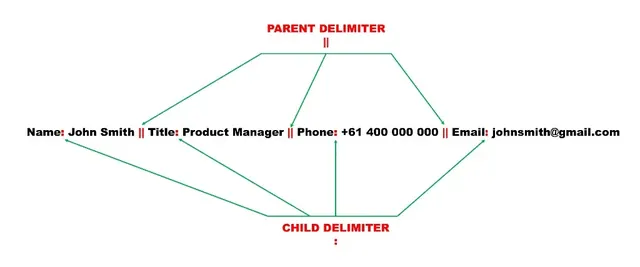
- Child Delimiter: It separates two columns.
Example: Row Name (child delimiter) Row Description
- Parent Delimiter: It separates two rows
Example: Row Name 1 (child delimiter) Row Description 1 (parent delimiter) Row Name 2 (child delimiter) Row Description 2
- Row names and descriptions separated using delimiters (parent and child)
Example: Row Name 1 (child delimiter)Row Description 1 (parent delimiter)Row Name 2 (child delimiter) Row Description 2 (parent delimiter) Row Name 3 (child delimiter) Row Description 3(parent delimiter) ……………. Row Name n (child delimiter) Row Description n
Sample metadata string:
Points to Consider for writing metadata correctly:
There’s a limit of maximum 20 rows and 2000 characters (including delimiter and spaces) for metadata send per Submit Document API request.
The Transaction ID and Unique Hash value of the document is generated and shown upon completion of process. They always get added to the last two rows of Document Details table.
Please note that parent delimiter will never come after the last row description. Therefore, if there’s only one row of information you will only need a child delimiter. In that case, you will still require to pass the Parent Delimiter but as blank value in the body of the request.
Example: Name : John Citizen
“parent_delimiter”: “”
“child_delimiter”: “:”You will always have the option to define a parent and child delimiter at the time of submitting documents. Please ensure that you define same delimiters that you have used while writing metadata in correct order of use.
In case you don’t wish to send any metadata, you can leave the metadata and delimiter out of body and payload. In that case, API will not consider those as part of the API call to action.
The "redirecturl" parameter in the body of "Submit Document" API is optional and is only required to be added in the body if you would like our system to redirect to an external URL after the verification is successfully executed. This option allows our clients to host end page that contains Document Details and Document on their domains.
Q. What is a public QR Code?
A: A VeriDoc Global QR code that anyone can scan to access the verification gateway and to see the information present on the verification URL using a QR code scanner mobile application (VeriDoc Global scanner or third party QR code scanners). The verification URL of documents secured using public QR codes can also be accessed through any web browser.
Q. What is a private QR code?
A: A VeriDoc Global access controlled private QR code which restricted users with permissions given by creator at the time of submitting documents can scan to access the information available on the verification platform. The URLs of these QR codes are protected to only show the verification page if the QR code is scanned using the VeriDoc Global scanner application where users have to login using the email assigned by the creator.
Q. How to create a public/private QR code and assign view permission to certain users?
A: Add the following in the body of Submit Document Request to create a private QR code: "Ispublic": 0,
"authorizedusers": "Email of authorized users who can access information for this doc"
Use the following codes:
If Public QR code: 1 or NULL (i.e., no Ispublic required in the body)
If Private QR Code: 0 and add all the emails for the users whom you would like to grant access for view.
To add multiple emails for private QR code use the following file separator:
"Ispublic": 0,
"authorizedusers": “john.smith@abc.com; andrew.white@def.com; peter.wood@xyz.com”
If you do not add ispublic in the body of submit documents, the API request will automatically be treated as a public QR code request, meaning the QR code will be visible to anyone that scans using any QR code reader application.
In this case, Payload will be
(apikey+uniqueid+fileurl+metadata+parent_delimiter+child_delimiter+secretkey)You can only assign a document to be private at the time of submitting documents. You will have to enter all the emails that you would like to grant access to for scanning a QR code to view verification at the time of submitting documents. No more emails can be added at a later stage with the current flow.
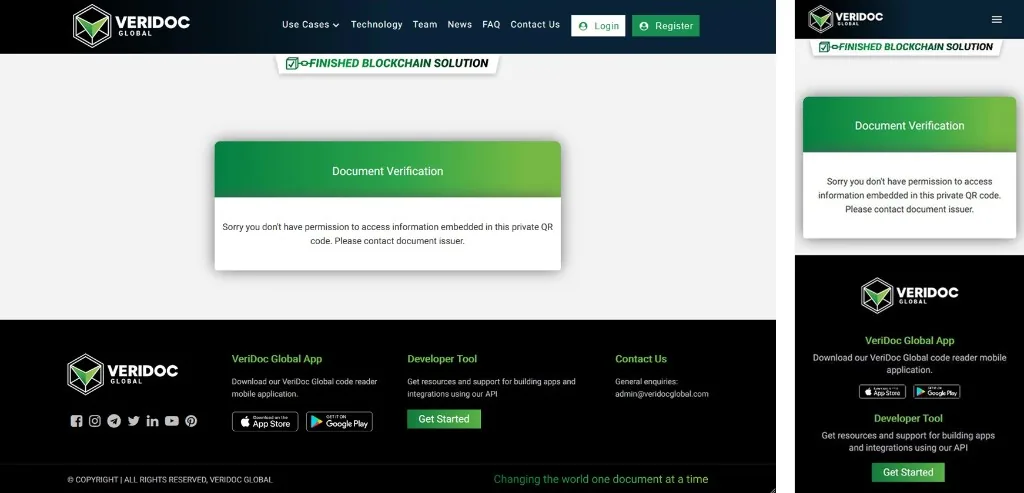
When a user tries to open the verification URL in the web-browser or scan the QR code using a third party QR reader mobile application, the system will display the following screen:
When a user who does not have access to the QR code scans the private QR code using VeriDoc Global scanner (logged in using email which do not have permission) the following error will show up on the scanner screen:
For users who have logged in the VeriDoc Global application using their emails which were granted permission at the time of submitting the document, verification will work as it does normally when they scan the QR code using VeriDoc Global scanner.